Pro add-on · v1.0.0
What the Pro add-on adds, and how to use it
Flexa FormFlow Pro is a second plugin that sits on top of the free one. It adds steps to forms, eleven more email blocks, shared content you edit once, a language version per email, and a CRM push for workflows. Nothing in the free plugin changes: Pro only fills in the seams the free plugin already exposes.
Overview
What Pro adds
Everything below is an addition. Forms, entries, emails and workflows keep working the way the free guide describes.
| Area | What Pro adds |
|---|---|
| Forms | A Step item that splits a long form into steps with a progress bar, plus the Phone and Country fields. |
| Email blocks | Banner, Countdown, Featured posts, Featured products, Cross-sells, Products with reviews, Offer, Order fields, Plugin content, Shipment tracking, Synced pattern. |
| WooCommerce | Order data other plugins store, shipment tracking, and the emails other plugins add to Woo. |
| Shared content | Synced patterns, custom variables and brand colors, each edited in one place. |
| Delivery | File attachments per template, and a version of an email in each of your languages. |
| Workflows | A Push to CRM action, wired to one saved connection. |
Pro needs the free plugin
flexa-formflow first; Pro refuses to boot without it.Get Flexa FormFlow Pro
Setup
Install and license
- Install
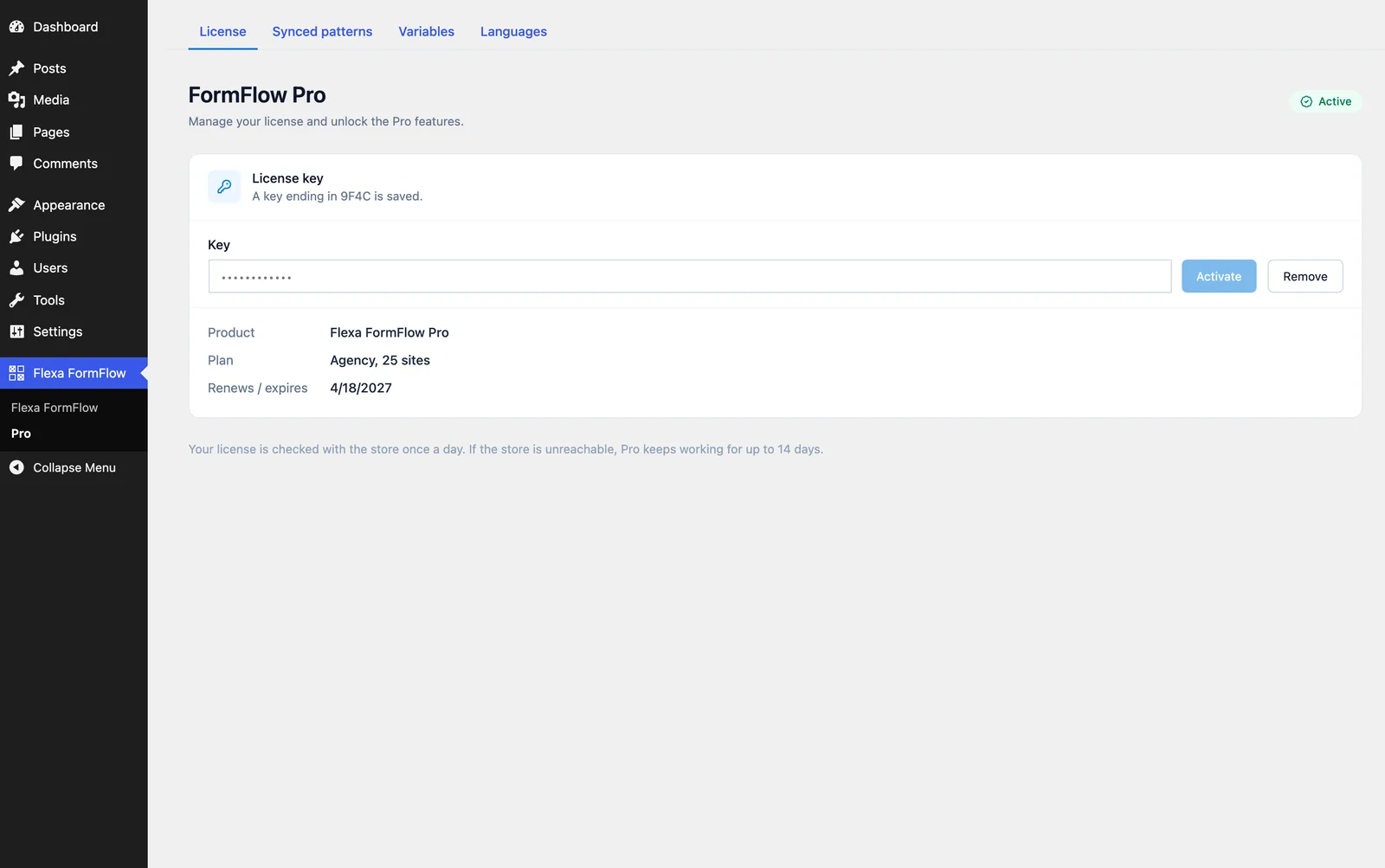
flexa-formflow-profromPlugins > Add New > Upload Plugin, then activate it. - A second menu item appears under Flexa FormFlow, called Pro. It has four tabs: License, Synced patterns, Variables and Languages.
- Paste your key into License > Key and press Activate. The badge at the top right turns green and the card shows your plan and renewal date.
How the check works
Setup
When a license lapses
A lapsed license never breaks a site that is already running. Pro draws a line between building something new and sending what you already built.
| Still works | Needs an active license |
|---|---|
| Steps already placed in a form | Adding a Step item to a form |
| Phone and Country fields already on a form | Adding either field from the palette |
| Pro blocks already in an email | Adding a Pro block in the email editor |
| Language versions already made | Adding, editing or removing a version |
| Synced patterns, variables and colors already in use | Editing the pattern, variable and color lists |
| Attachments already attached to a template | Picking new files |
| The Push to CRM action: it logs "Requires a FormFlow Pro license" and skips |
The CRM action is the one exception
Forms
Multi-step forms
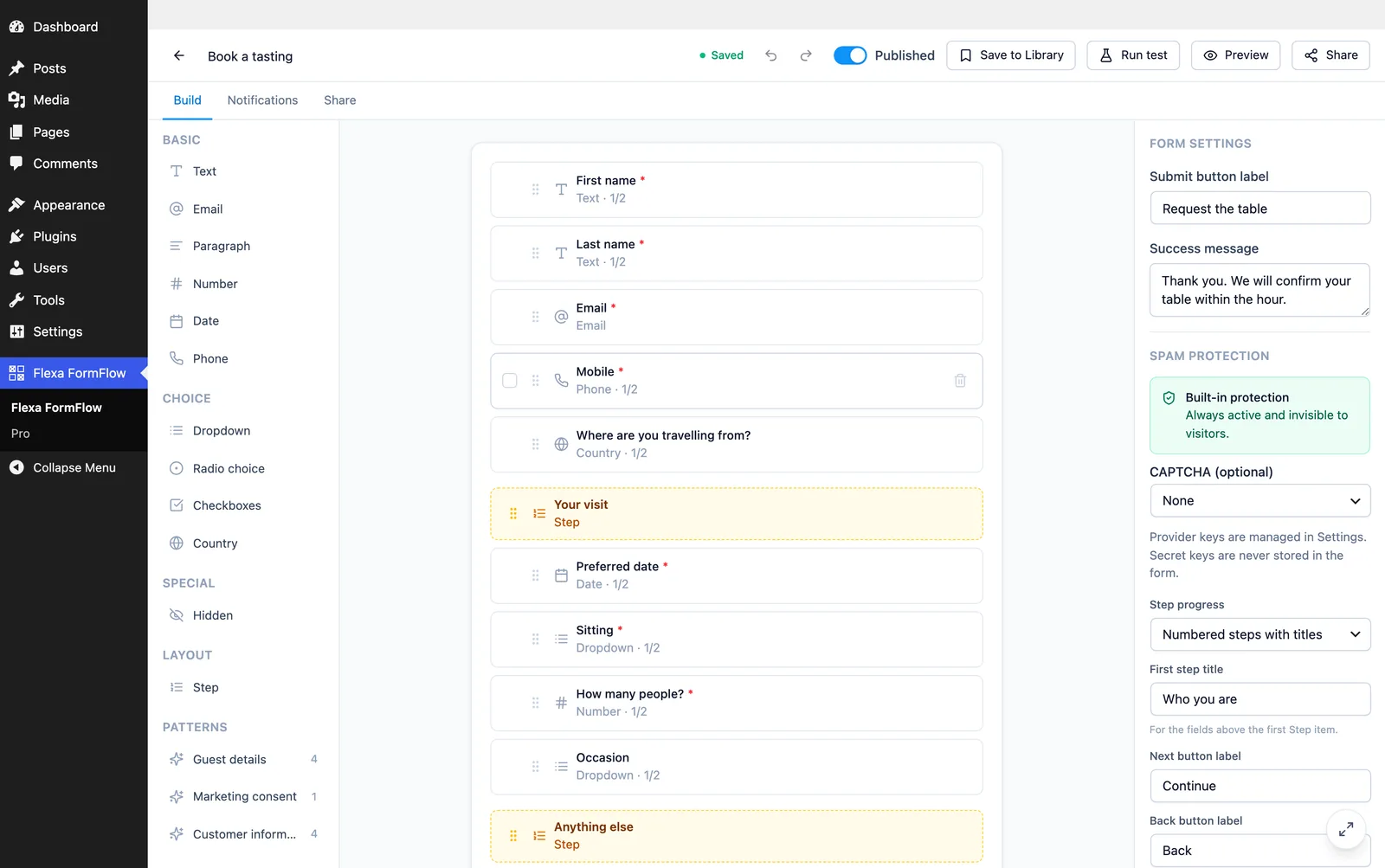
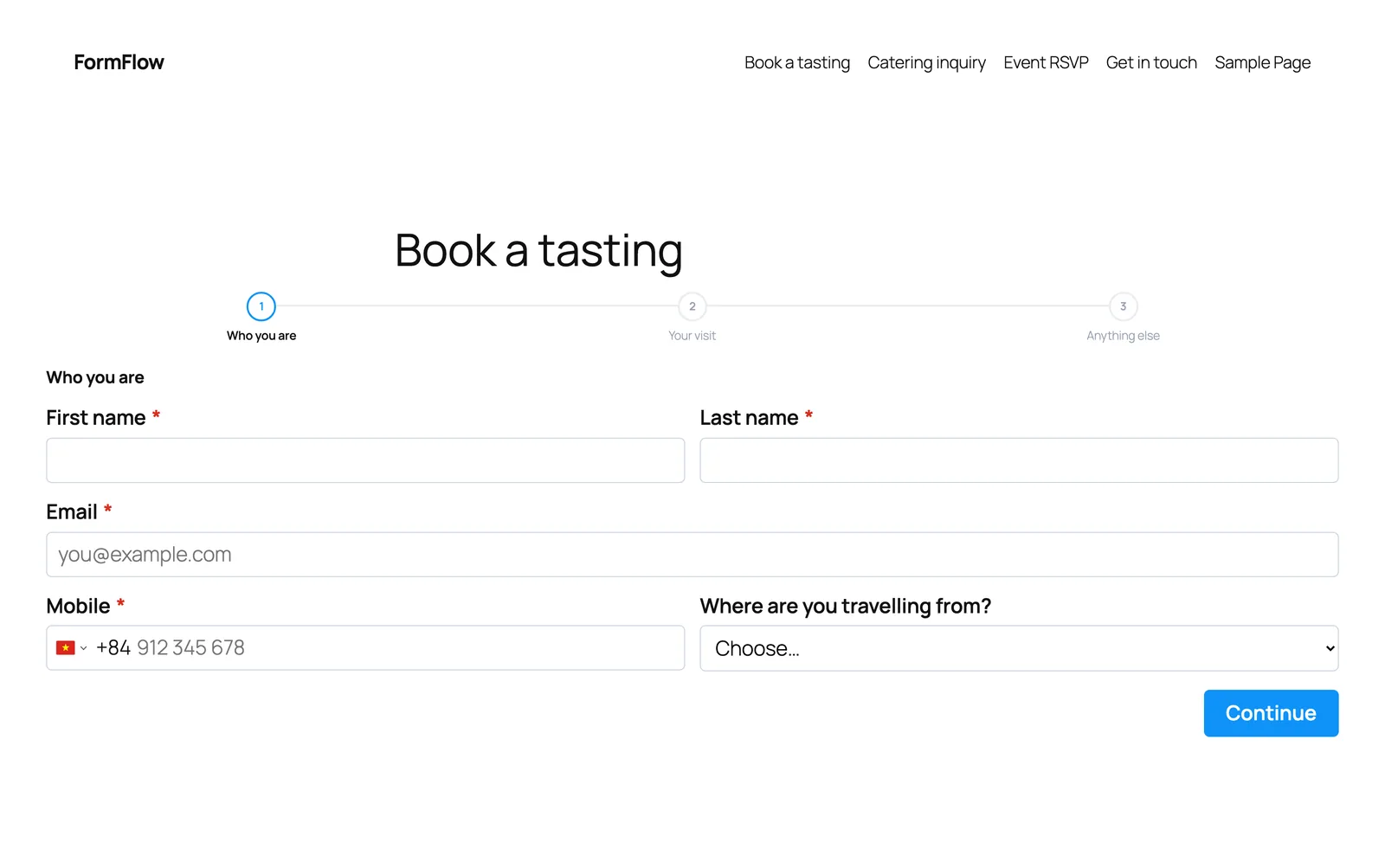
A long form put on one page gets abandoned. Drop a Step item into the builder and everything after it becomes the next step.
- Open a form, then drag Step from the palette to the point where you want the break. Fields above the first Step become step one.
- Give the step a title, and a short description if the step needs explaining. Both show above the fields.
- In Form settings, pick the progress style: a bar, a stepper, a ring, segments, or none. You can also rename the Back and Next buttons and set a title for step one.
It still sends once
Forms
Phone and country fields
Two fields that are tedious to build by hand, with the data already in them.
Phone
A phone number with its country picked from a list. Settings:
| Setting | What it does |
|---|---|
| Default country | Which country is picked when the form opens. The visitor can change it. |
| Countries at the top | A short list shown first, in the order you set. |
| Only these countries | Limits the list. Leave empty to offer every country. |
| Accept | Any phone number, or mobile numbers only. Mobile only suits a form that sends a text message. |
| Save the number as | Readable (+84 901 234 567) or E.164 (+84901234567) for other systems to read. |
Country
Every country, named in the site language. It renders as a plain select, so it works with no JavaScript at all. Settings cover the country picked when the form opens, the countries pinned to the top, an allow-list, and whether the entry keeps the name (Vietnam) or the two-letter code (VN).
One plain value in the entry
{field:7} drops into an email or a workflow without any extra handling.Emails
Pro email blocks
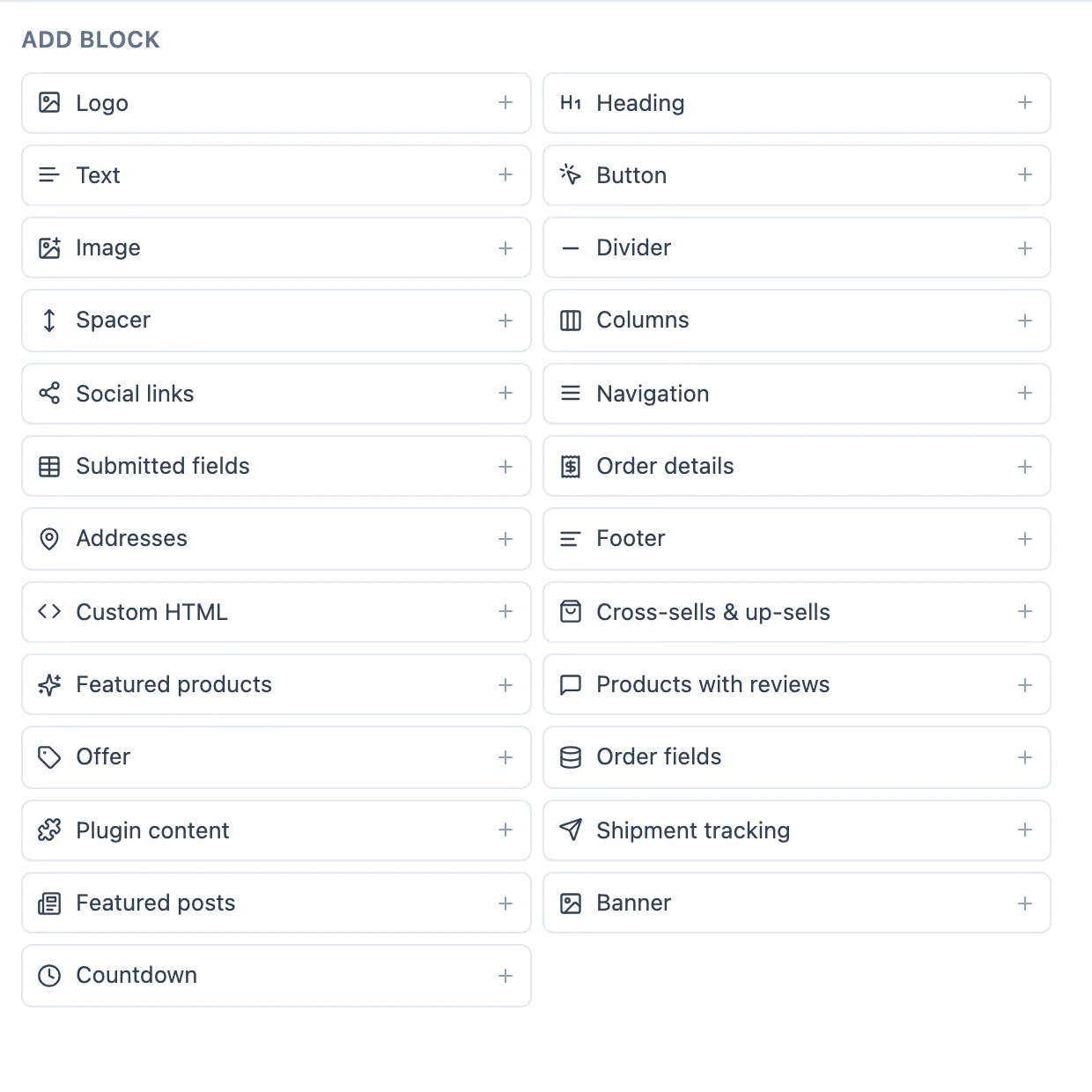
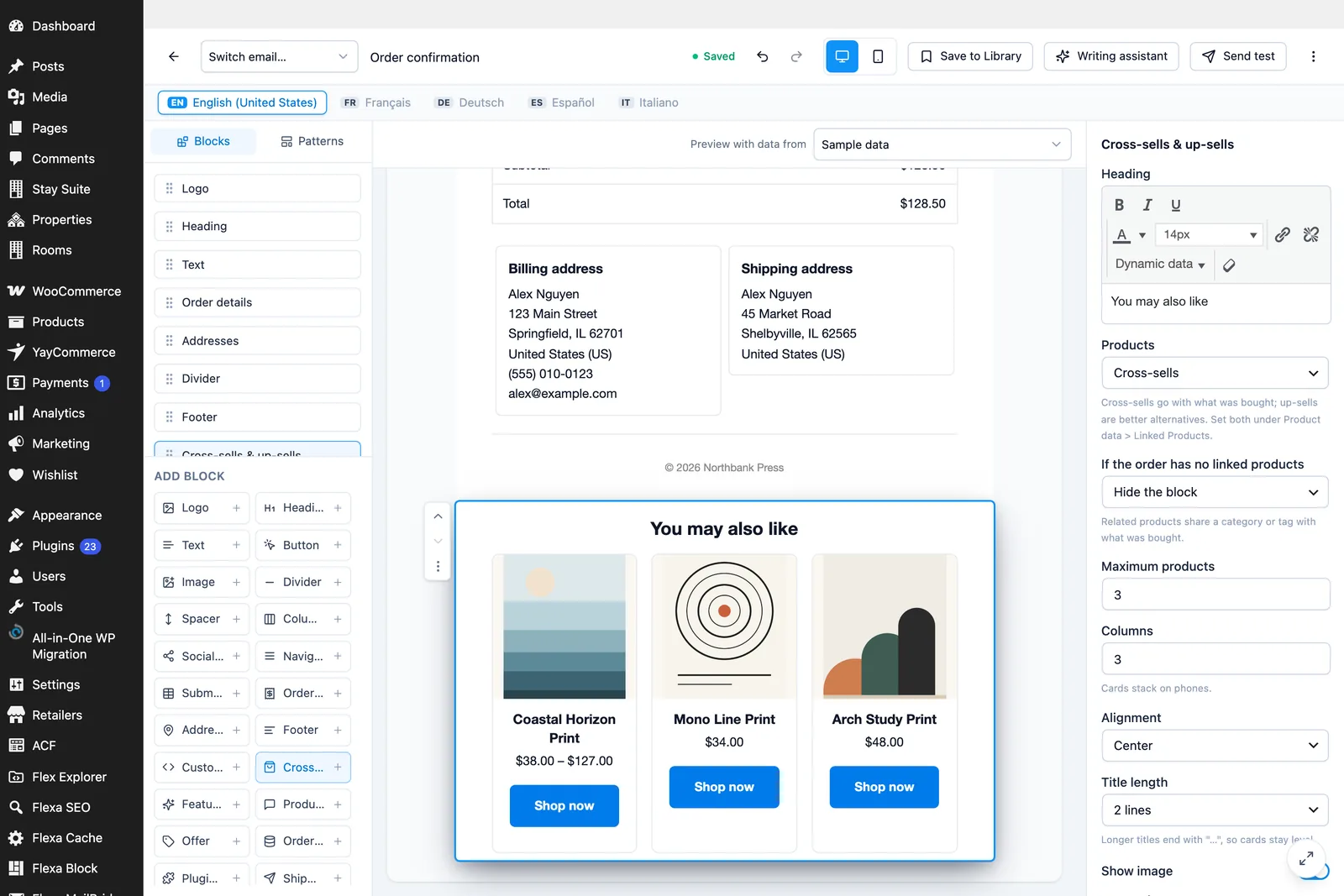
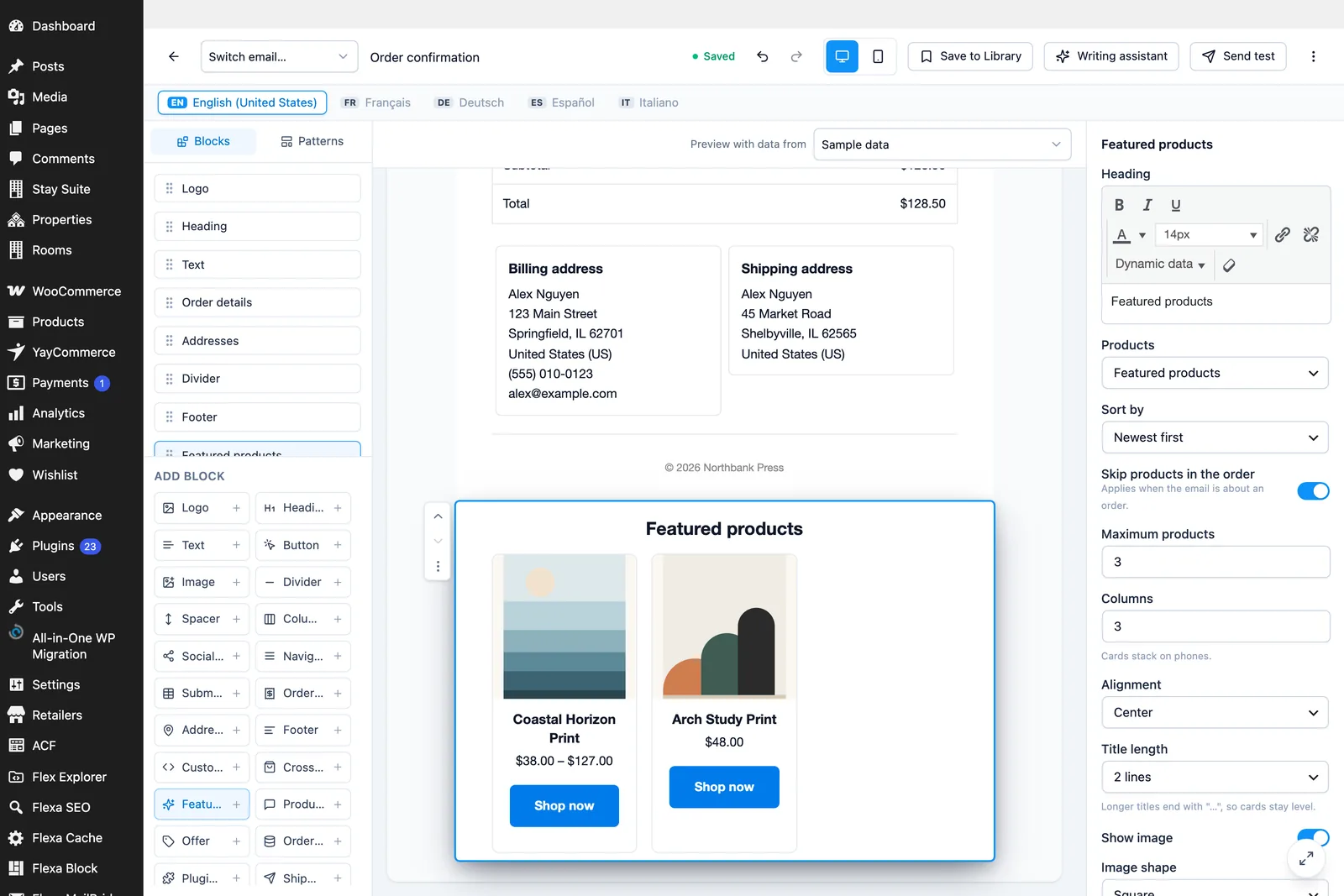
Eleven blocks join the inserter in the email editor. Four work on any site; the rest need WooCommerce and an order.
| Block | What it shows | Needs |
|---|---|---|
| Banner | A background image with a heading, a message and a button on top. | Any site |
| Countdown | A live timer to a date, or to a number of hours after the email is sent. | Any site |
| Featured posts | Latest blog posts, a category, or posts you pick. | Any site |
| Synced pattern | Content shared by many emails. Edit it once, every email changes. | Any site |
| Featured products | Products you pick, a category, or a store list. | WooCommerce |
| Cross-sells & up-sells | Products linked to the ones in the order. | An order |
| Products with reviews | Star ratings and a customer review for each product. | WooCommerce |
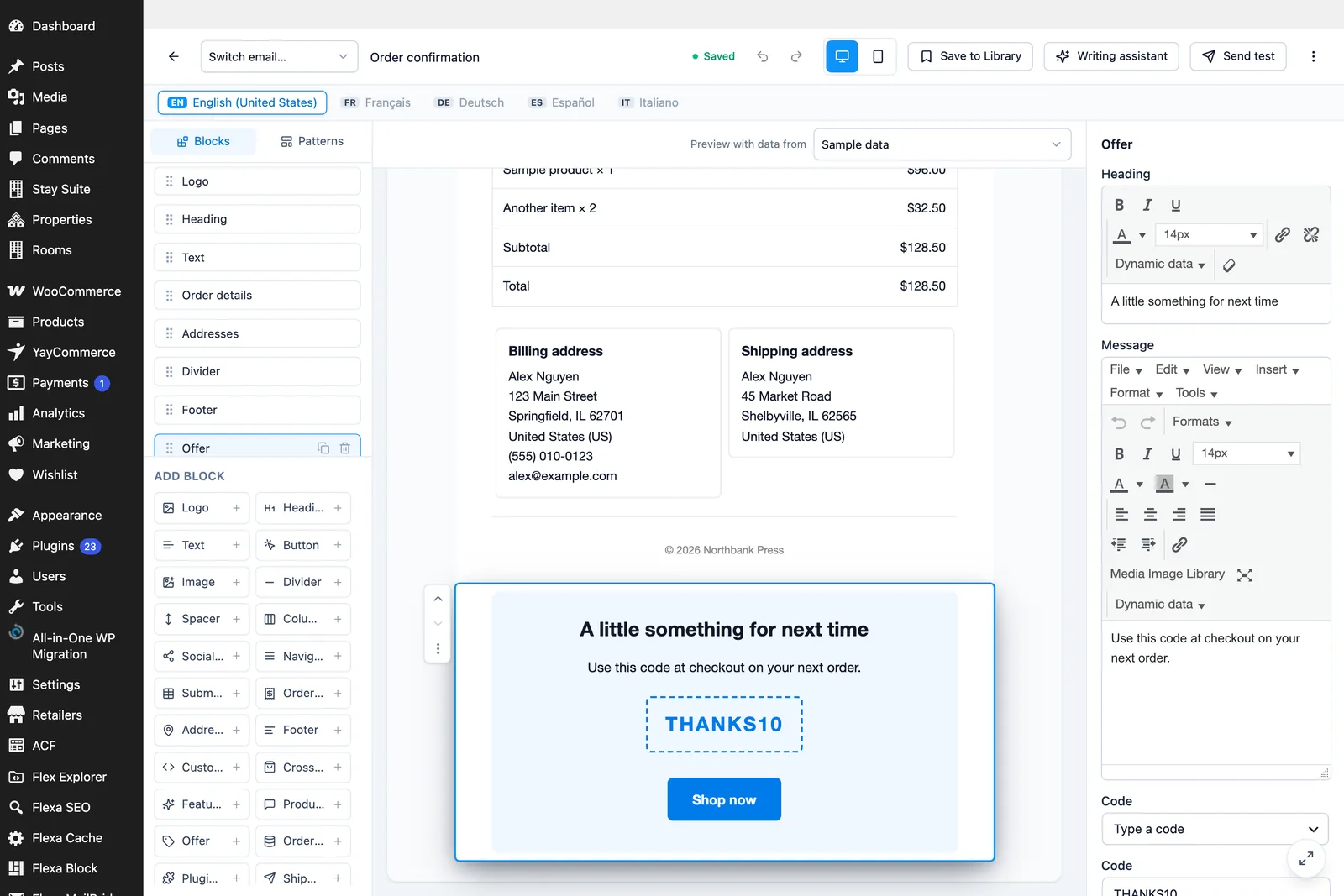
| Offer | A coupon code in a dashed frame, what it gives, when it expires, and a button. | WooCommerce |
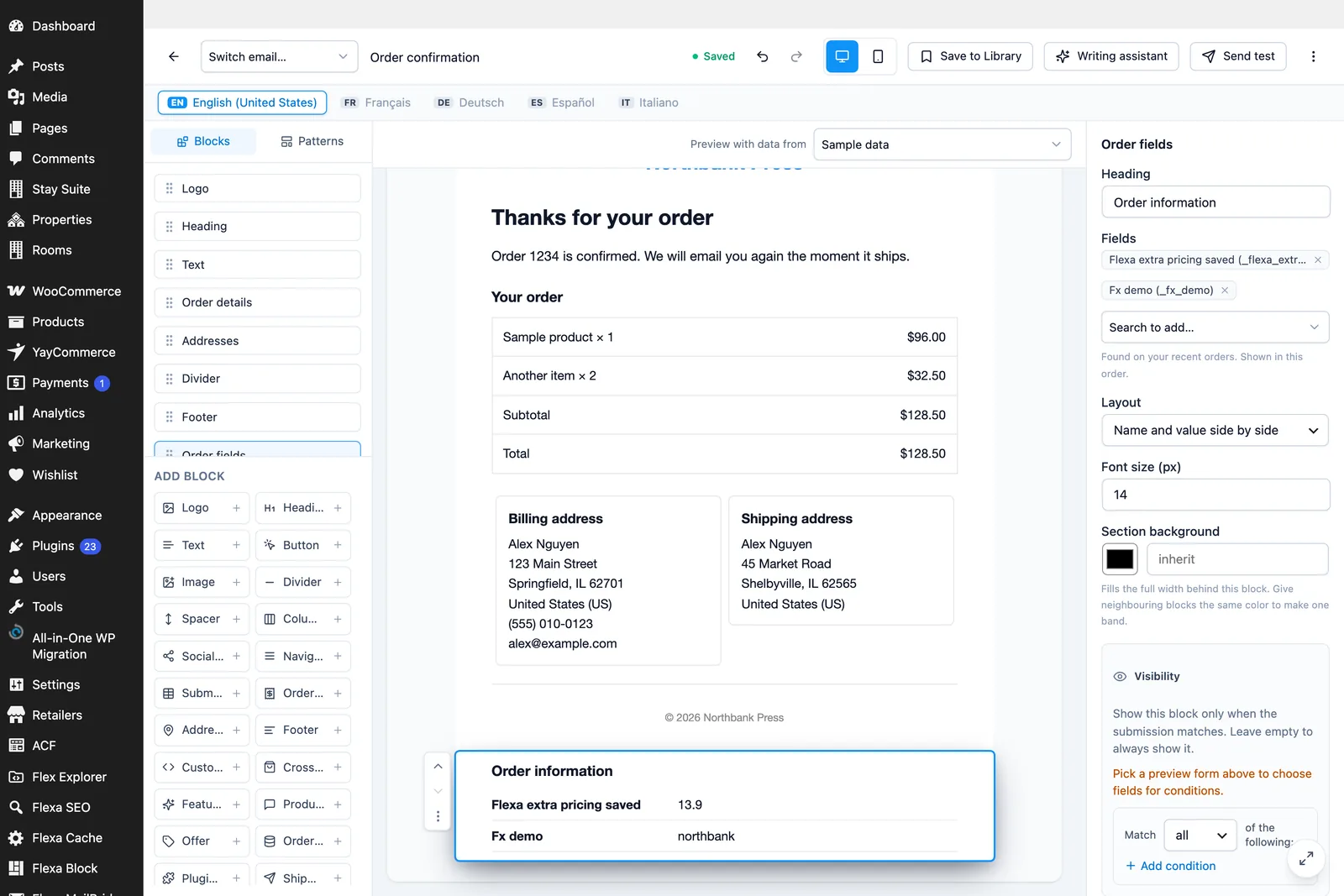
| Order fields | Fields other plugins keep on the order: a delivery date, a checkout question, an ACF field. | An order |
| Plugin content | What other plugins print into WooCommerce emails: tracking, a license key, tickets. | An order |
| Shipment tracking | Tracking numbers and links from your tracking plugin. | An order |
The countdown is a real image
Mail clients do not run JavaScript, so the timer is rendered as an animated GIF by your own site and refreshed each time the message is opened. Set it to a fixed date, or to a number of hours after the email goes out, which suits an abandoned-cart or a limited-offer message. You can choose the units, the colors and the text shown once it reaches zero.
Offers read the coupon
Point the Offer block at a real WooCommerce coupon and it reads the discount and the expiry date live, so the email never promises something the checkout refuses. A coupon that has stopped working drops the whole block from the message rather than sending a dead code.
WooCommerce
Order data from other plugins
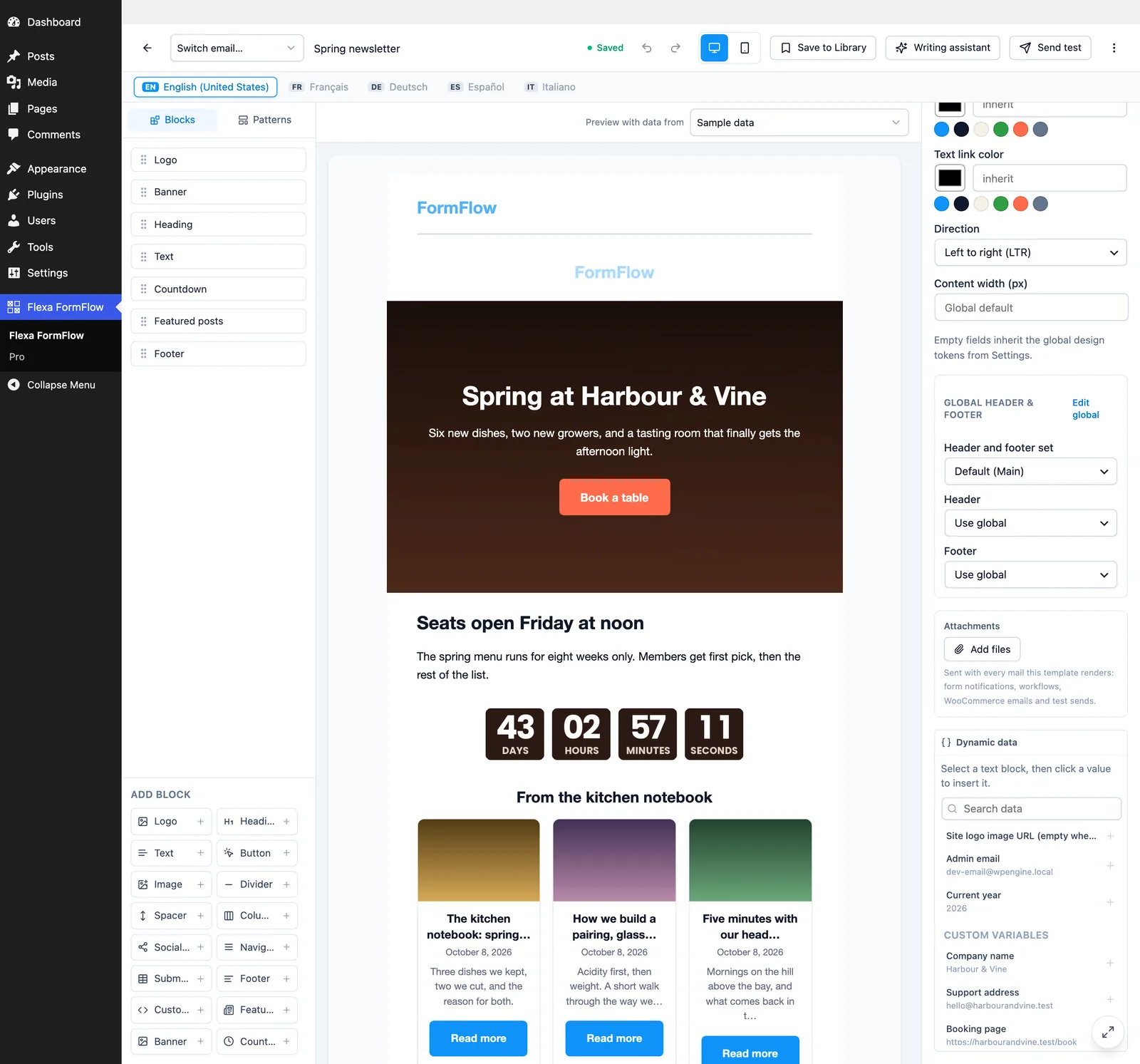
A WooCommerce order collects fields from every plugin on the checkout: a delivery date, a gift message, a VAT number, an ACF field. Pro turns each of those into something you can place in an email.
Each order field becomes two things: a row the Order fields block can show, and a token you can drop anywhere in the design.
{order_meta:delivery_date}
{order_meta:gift_message}
{order_meta:vat_number}
WooCommerce's own bookkeeping is filtered out, so the list you pick from holds real fields rather than address indexes and hashes. Where a checkout plugin has given the field a label, that label is used instead of the raw meta key.
Shipment tracking
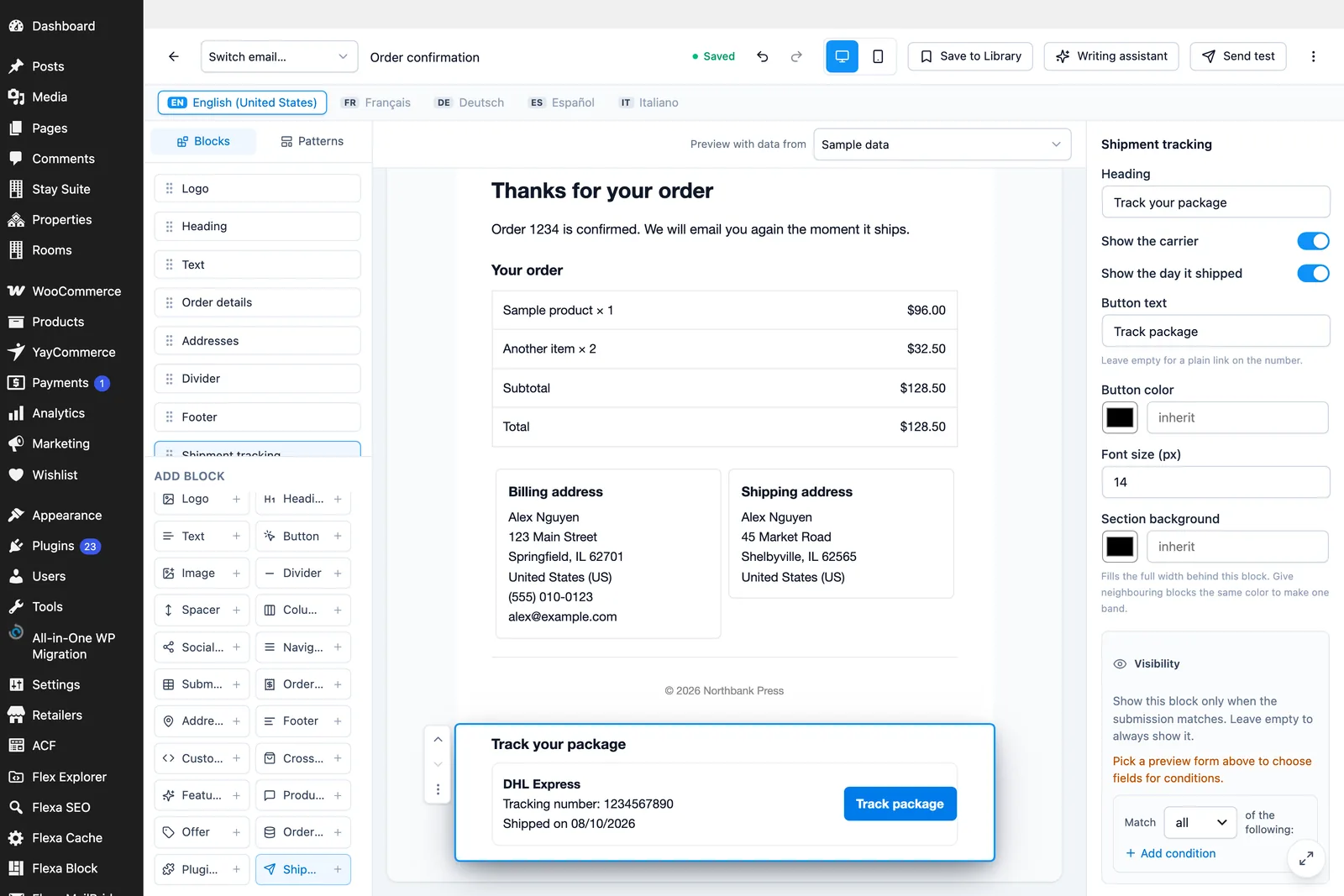
The Shipment tracking block reads carriers, tracking numbers, links and ship dates from WooCommerce Shipment Tracking, Advanced Shipment Tracking, YITH Order & Shipment Tracking and TrackingMore. A plugin that is not on that list can add its own through flexa_formflow_pro.tracking.shipments, or you can show whatever it prints with the Plugin content block.
What the email itself passes
A WooCommerce email hands its template a heading, an additional message, and sometimes more: a back-in-stock product, a user, a download. Those arrive as tokens too.
{email:email_heading}
{email:additional_content}
{email:product_name}
WooCommerce
Other plugins' Woo emails
The free plugin lets you design WooCommerce's own emails. Pro extends that to the emails other plugins add.
A custom order status, a "ready for pickup" notice, a back-in-stock alert, a booking reminder: anything registered as a WooCommerce email class joins the WooCommerce page in FormFlow, with the same editor and the same brand set as the built-in ones. Nothing is hard-coded per plugin; the list is built from what WooCommerce itself reports when it loads its mailer.
Designed emails survive a lapse
Plugin content block
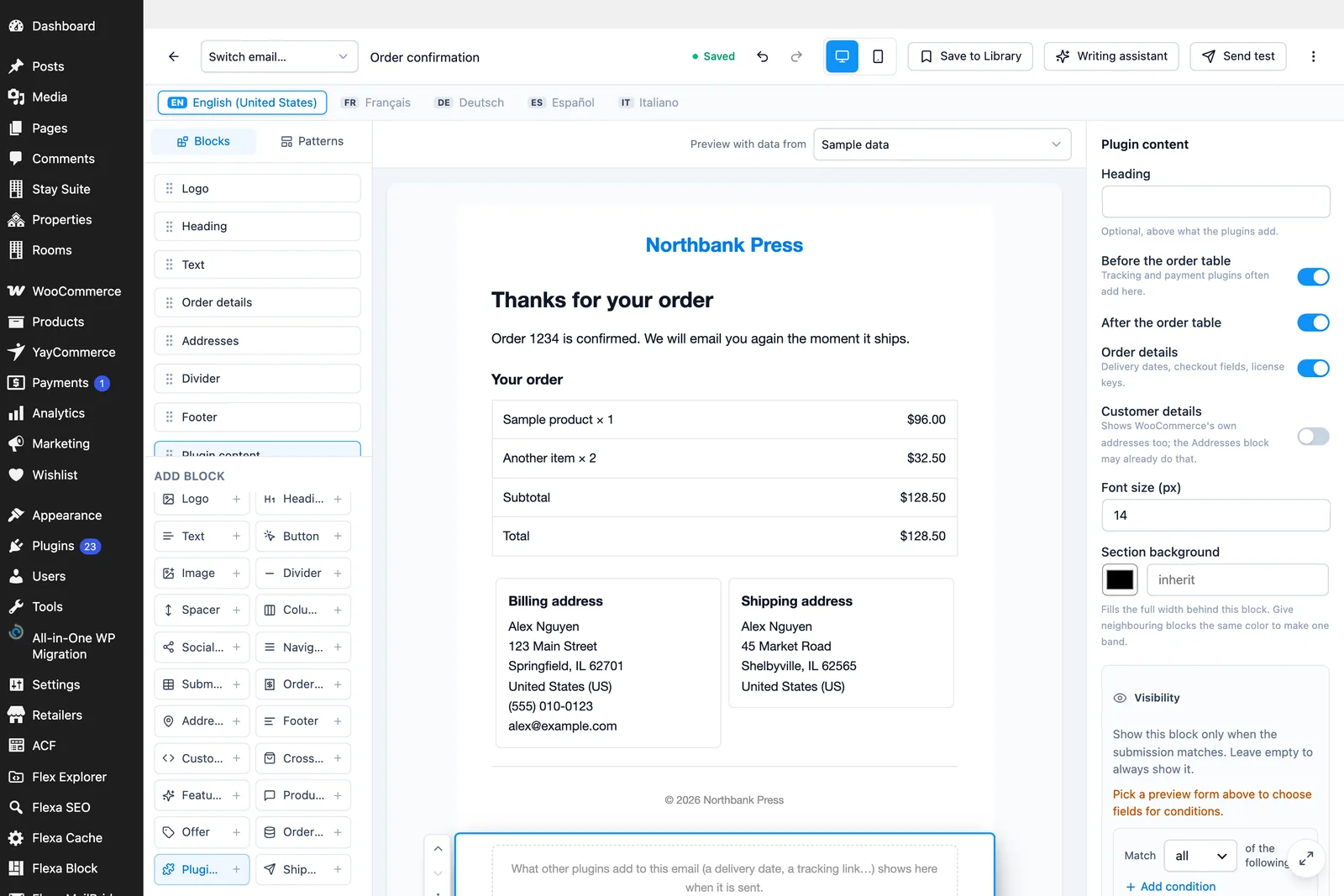
A FormFlow design replaces WooCommerce's template file, which is where other plugins usually print their part. The Plugin content block puts those hooks back, at the point in the layout where you place the block. Four switches decide which ones run: before the order table, after it, order details, and customer details. Without an order (a plain form email) the block shows nothing.
Shared content
Synced patterns
A block of content that many emails show, edited in one place. A seasonal note, a shipping promise, a support footer.
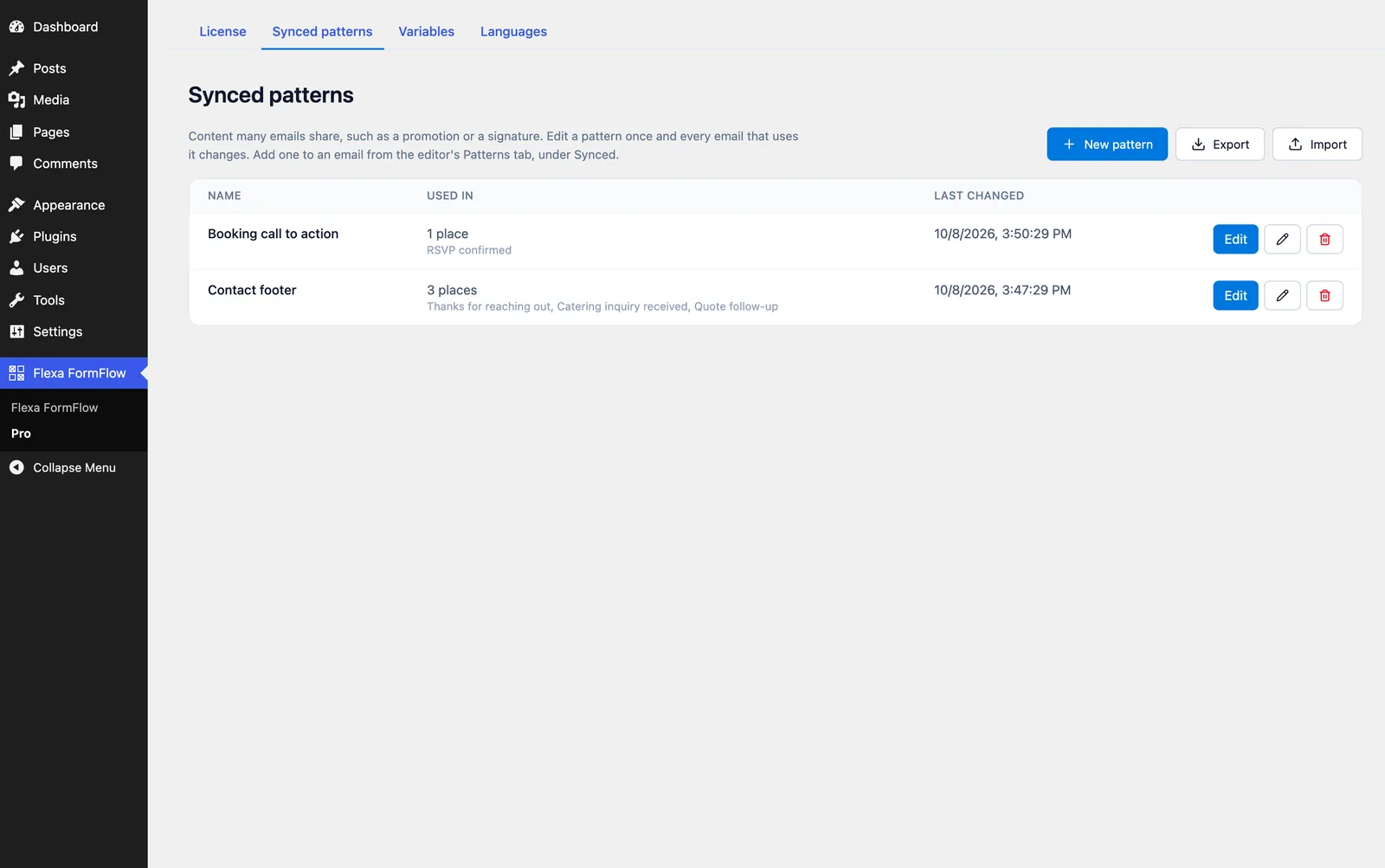
- Go to Flexa FormFlow > Pro > Synced patterns and create one. It opens in the normal email editor, so a pattern can hold any blocks, Pro ones included.
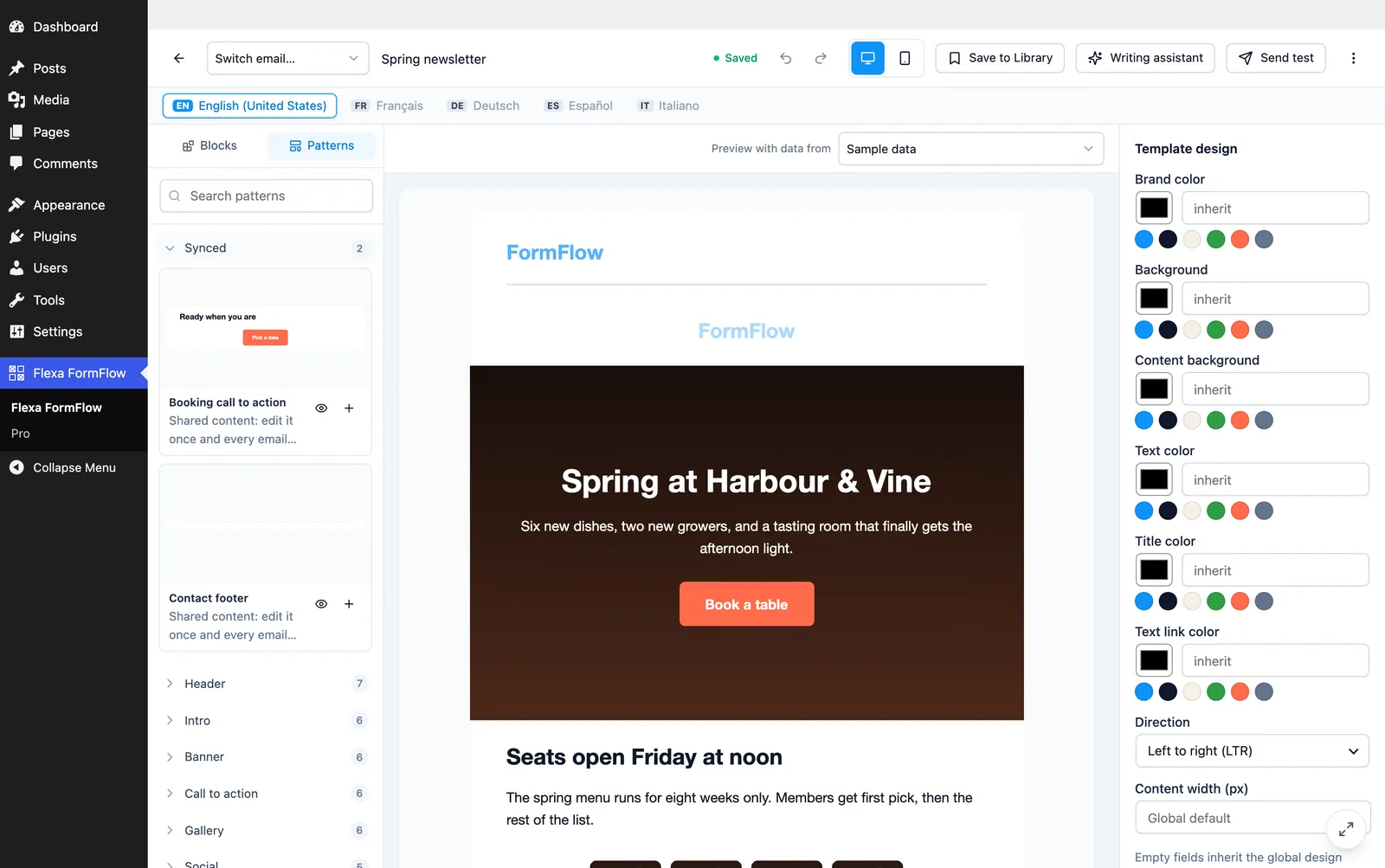
- In any email, insert the Synced pattern block and choose the pattern.
- Edit the pattern once. Every email carrying the block shows the new content on the next send.
Shared content
Custom variables
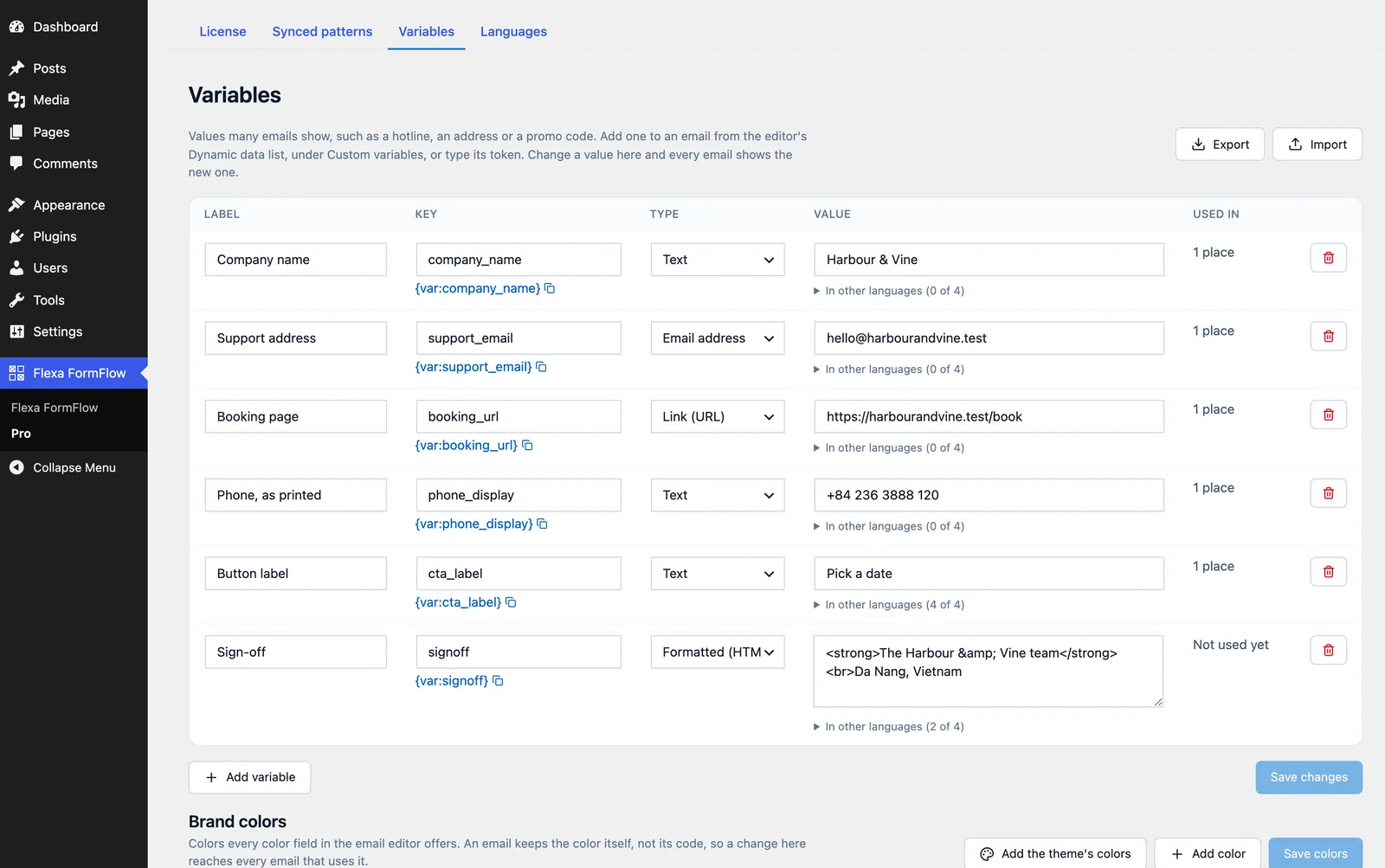
Site-wide values you type once and place in any email: a hotline number, an address, a booking link, a sign-off.
Each variable has a key, a type (text, URL, email address or formatted HTML) and a value. Place it with {var:<key>}. Change the value and every email that uses it changes with it. Up to 200 variables per site.
A value per language
Shared content
Brand colors
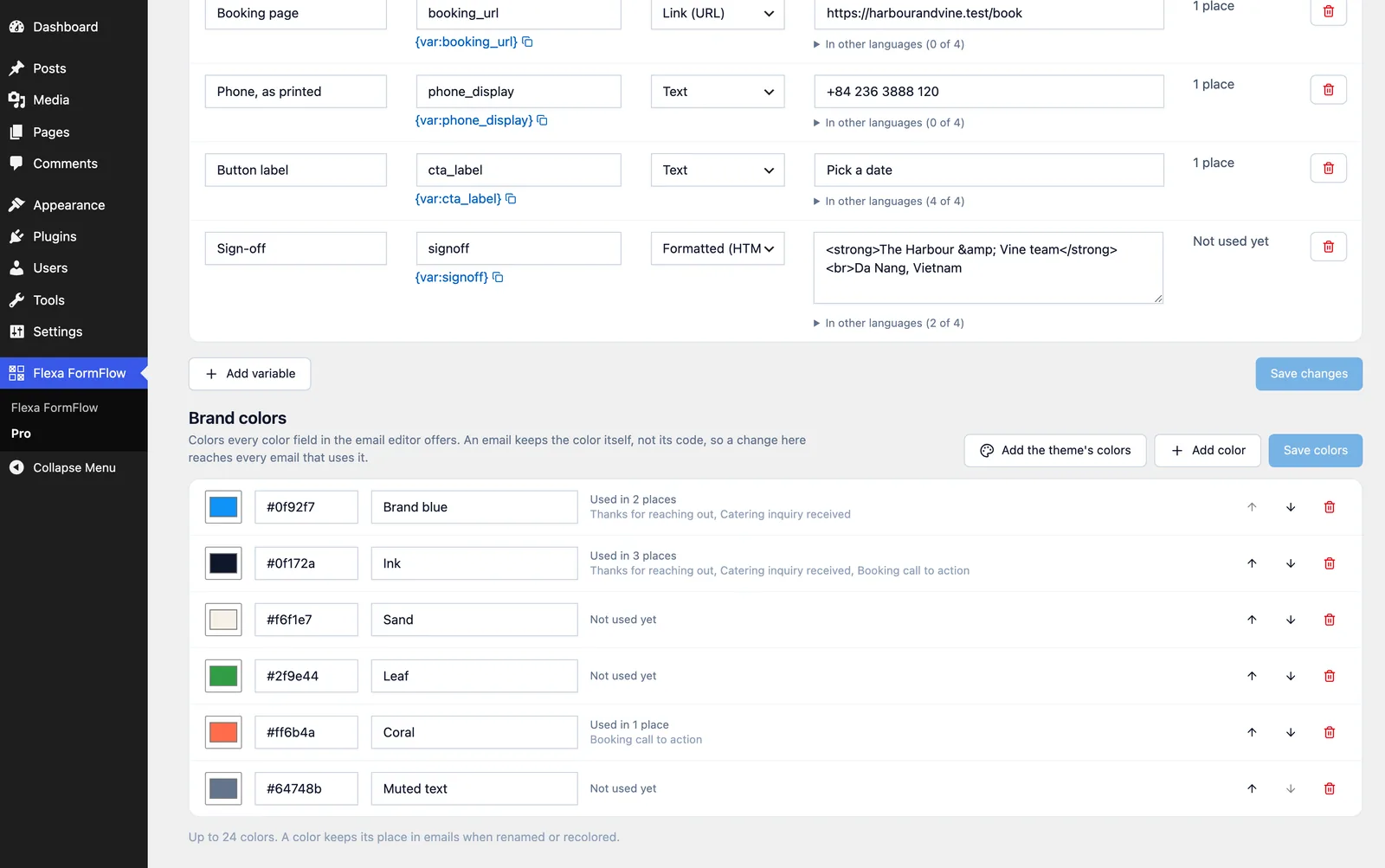
Named colors that every color field in the email editor offers.
An email stores the name of the color, not its hex code, so recoloring "Brand blue" on the Pro page restyles every email that uses it. Press Add the theme's colors to pull the palette your site theme already defines, or add your own. Up to 24 colors, and a color keeps its place in existing emails when you rename or recolor it.
Delivery
Email attachments
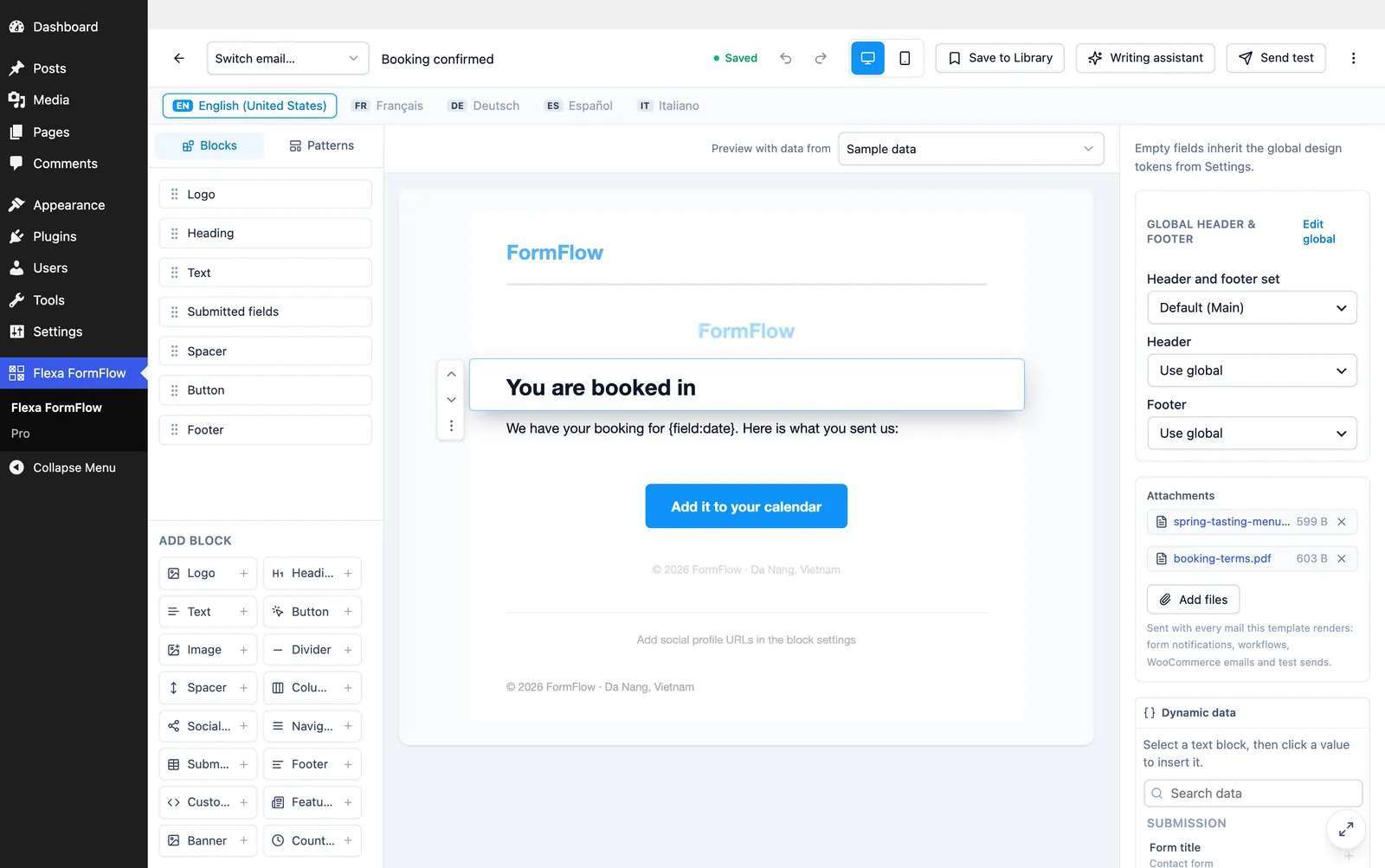
Files that go out with every message an email template sends: a terms sheet, a price list, a menu, a voucher.
- Open an email and select Template design in the settings panel.
- Under Attachments, pick up to ten files from the Media Library.
- Save. Every send of that email now carries the files.
Replace the file, not the email
Delivery
Emails in many languages
An email can have one version per language. Customers get the version in the language they ordered or wrote in.
The language list is read from the translation plugin you already run: WPML, Polylang, TranslatePress, Weglot or GTranslate. With none of those installed, WordPress's own installed languages are used. Leave the picker on Detect automatically unless you run more than one and want to pin a particular source.
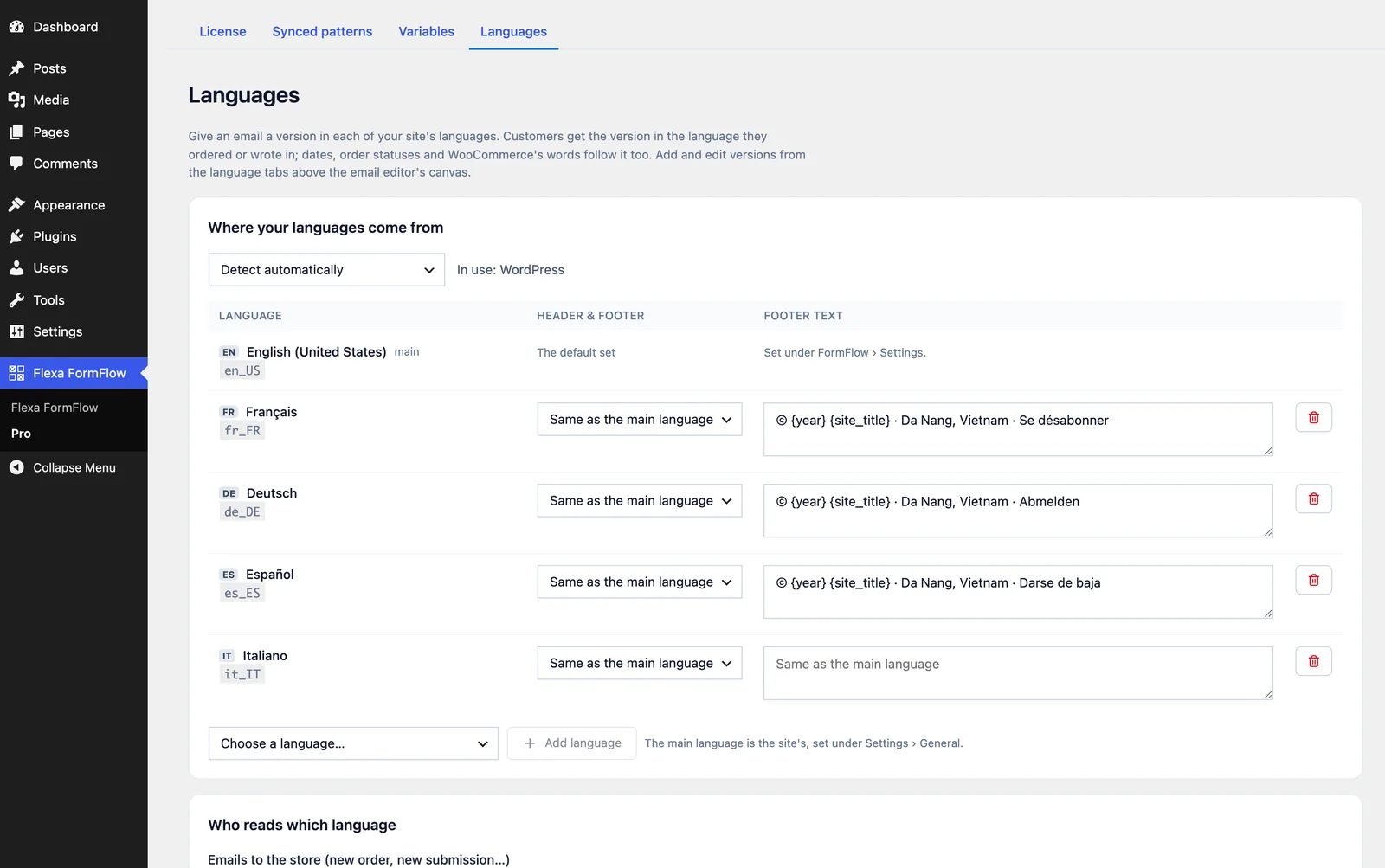
Adding a version
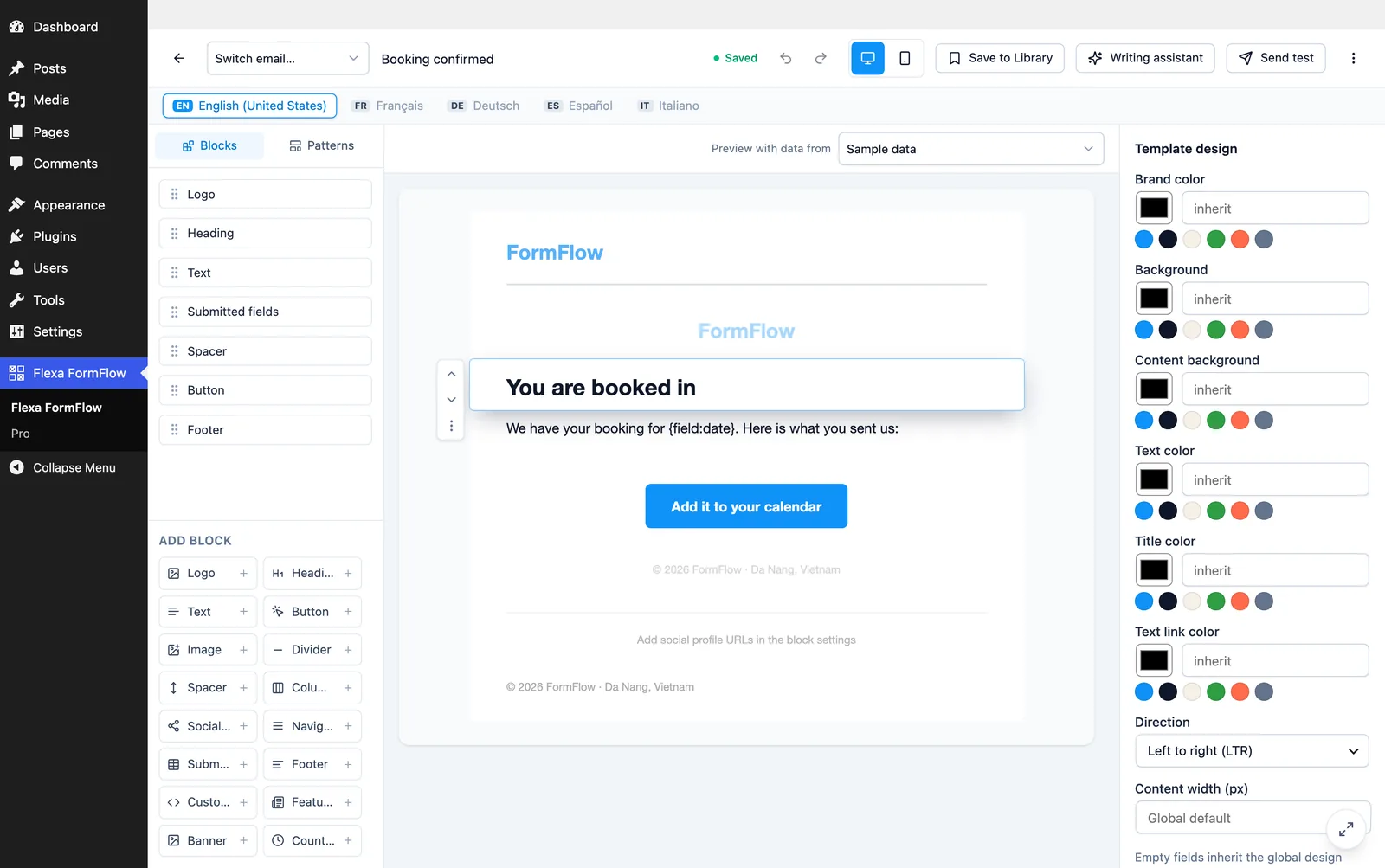
Open an email. Tabs above the canvas list the languages; press one to add or edit that version. A version starts as a copy of the main email, keeps its own subject, and is never listed as a separate email. Forms, workflows and WooCommerce keep pointing at the original.
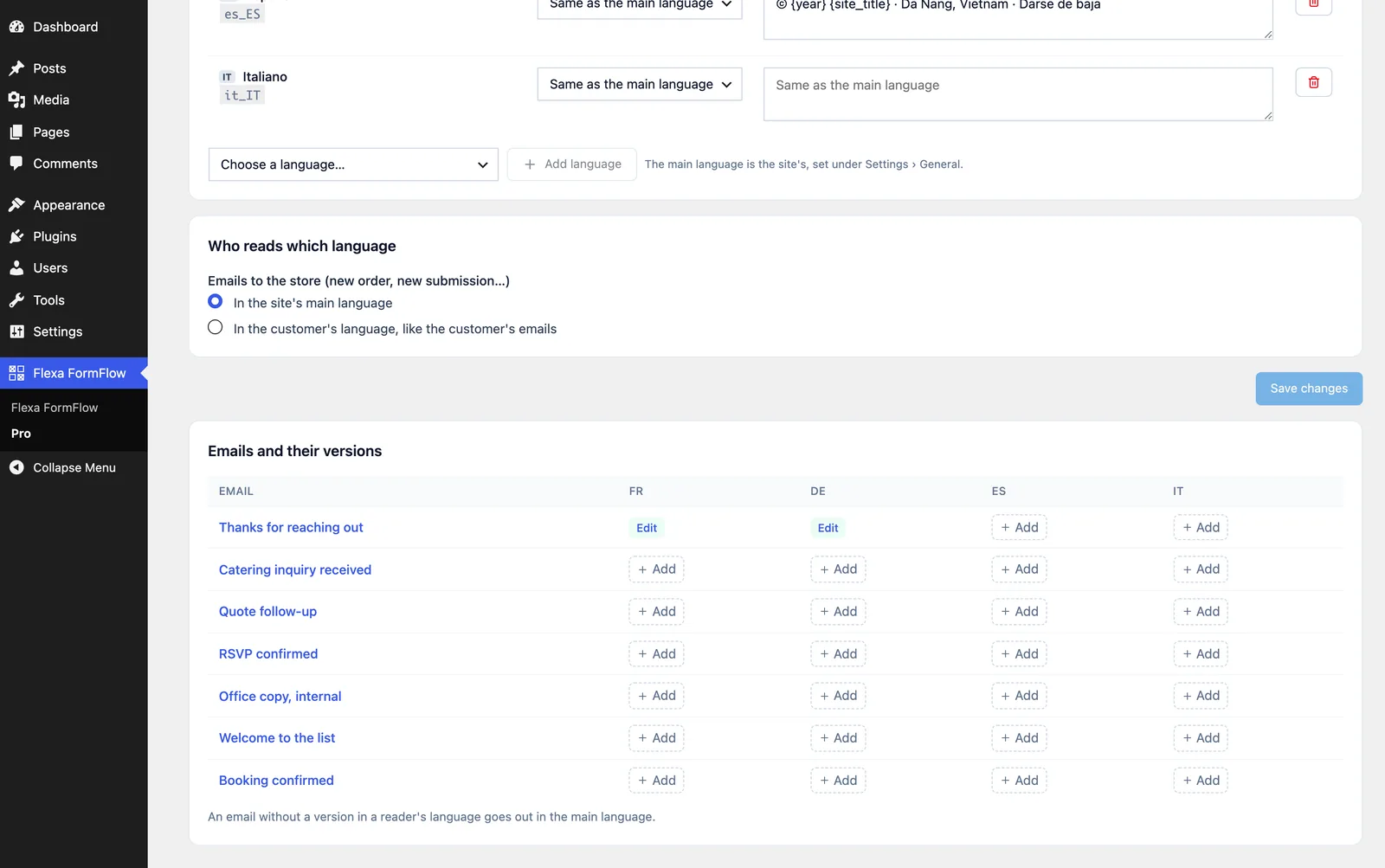
| Who gets the email | Which language it goes out in |
|---|---|
| A customer, from an order | The language the order was placed in, saved at checkout. |
| A visitor, from a form | The language the form was submitted in. |
| The store (new order, new submission) | The site's main language, or the customer's if you set it that way. |
More than the text you wrote
Workflows
CRM connector
A workflow action that sends an entry to Mailchimp, HubSpot, SendGrid, or any endpoint of your own.
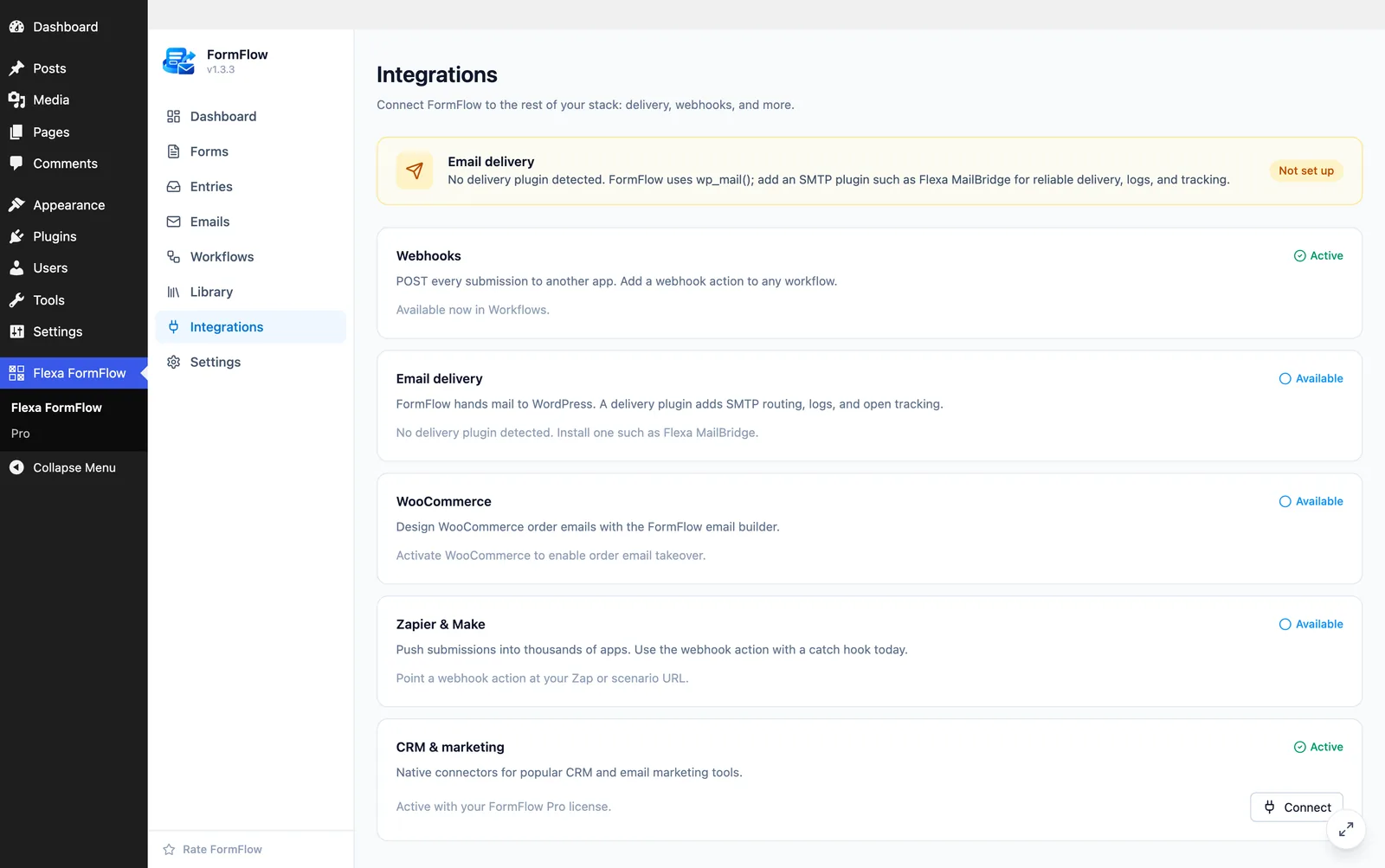
- On Integrations, open the CRM & marketing card and connect it. Pick a provider and paste the API key. The key is stored once and never shown again.
- In a workflow, add the Push to CRM action and choose that connection.
- Map the destination fields (email, name, tags) to form fields or fixed text. Turn on Only push when conditions match if the push should be selective.
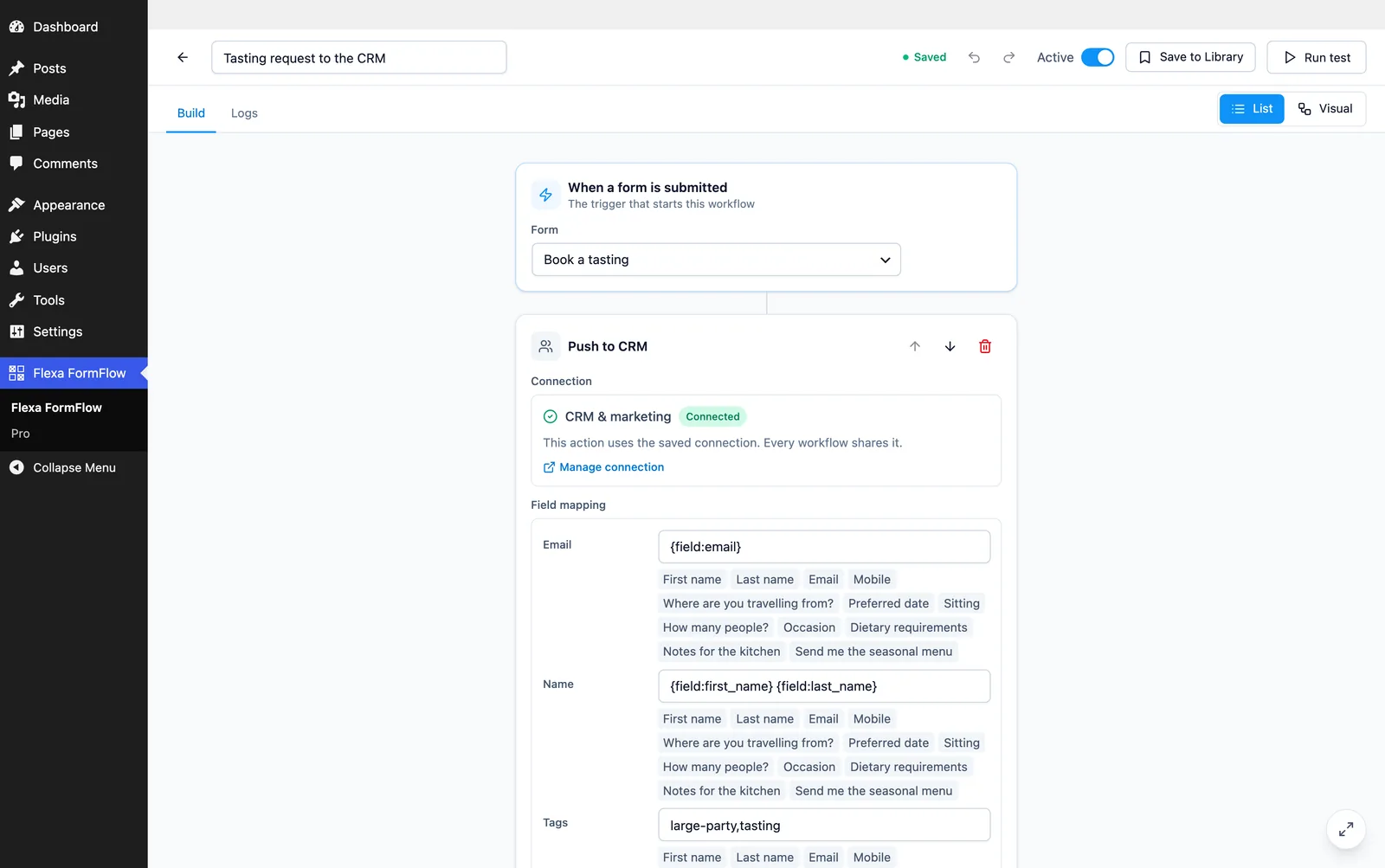
Check the log after the first run
Help
Pro FAQ
Do I lose my work if I stop renewing?
No. Forms keep their steps, emails keep their Pro blocks and language versions, and everything keeps sending. You lose the ability to add or edit those pieces, and the CRM push stops. Renew and it all comes back.
My site is offline or behind a firewall. Will Pro stop working?
Not immediately. Pro keeps going for 14 days from the last successful check. If your firewall blocks outgoing requests permanently, allow the license host through.
The countdown shows the wrong time.
The timer is drawn against your site's timezone, set under Settings > General. Check that first. The image is generated when the message is opened, so a cached copy in the reader's client can also be a few minutes behind.
An order field I need is not in the list.
Fields are read from the orders themselves, so one that no order carries yet will not appear. Place a test order through the checkout that sets it, then look again. Values that are not text are left out on purpose.
A customer got the English version instead of theirs.
That email has no version in their language, which is the intended fallback. Check the grid at the bottom of the Languages tab: anything showing Add has no version yet. Orders placed before Pro was installed also have no saved language.
Still on the free plugin?